
Article updated 30th October 2025
Collaborative Features
Collaborative working is at the heart of Collabora Online. We’ve packed it with powerful features like Follow the Editor, Track Changes, Comments and flexible Sharing Options to make teamwork smoother and more efficient than ever. These tools ensure keep everyone on the same page (literally!), ensure edits are transparent, and keep your shared documents secure. Let’s dive into these key features and see how they can boost your collaboration.
Follow the Editor: Stay in Sync, Instantly
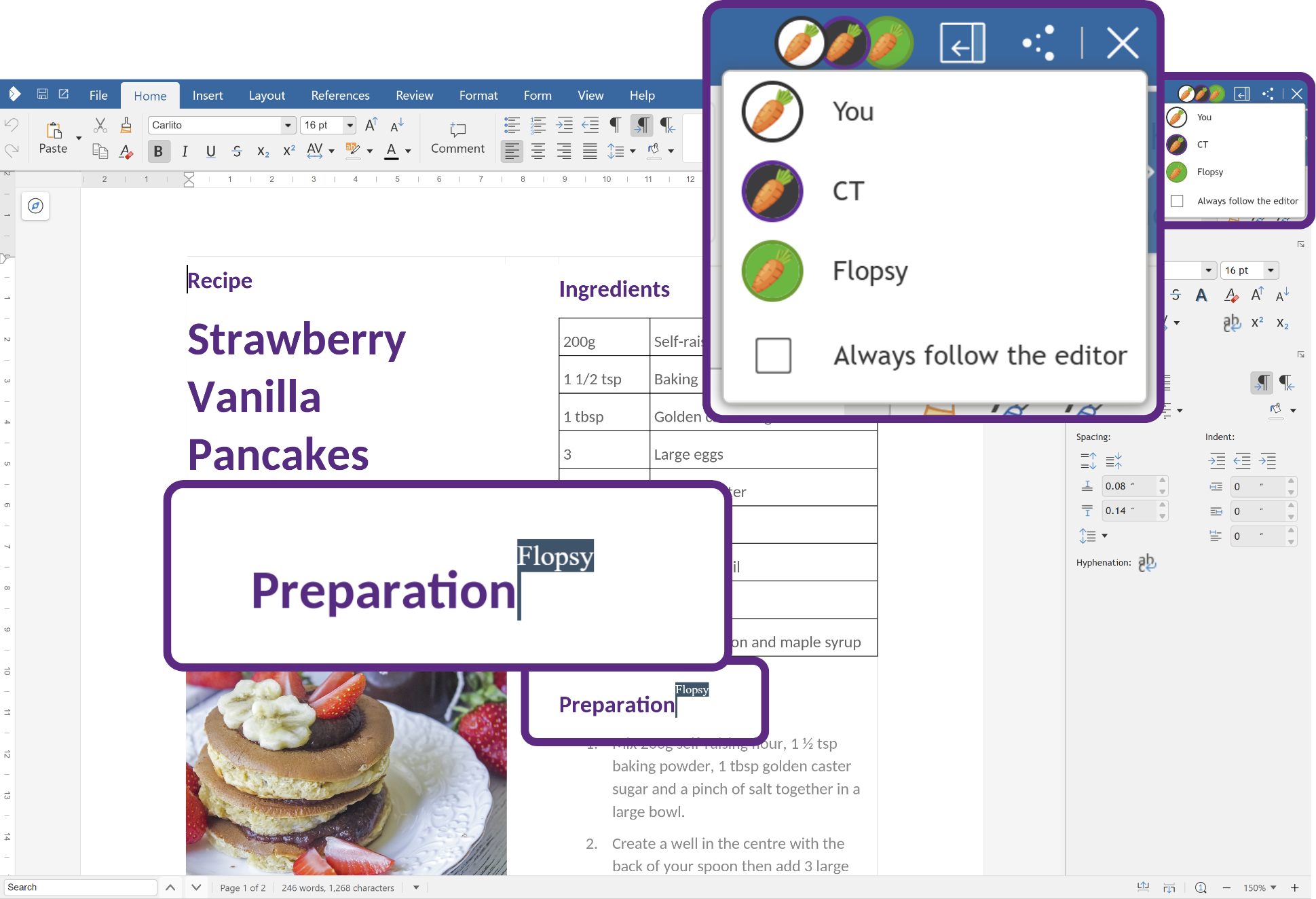
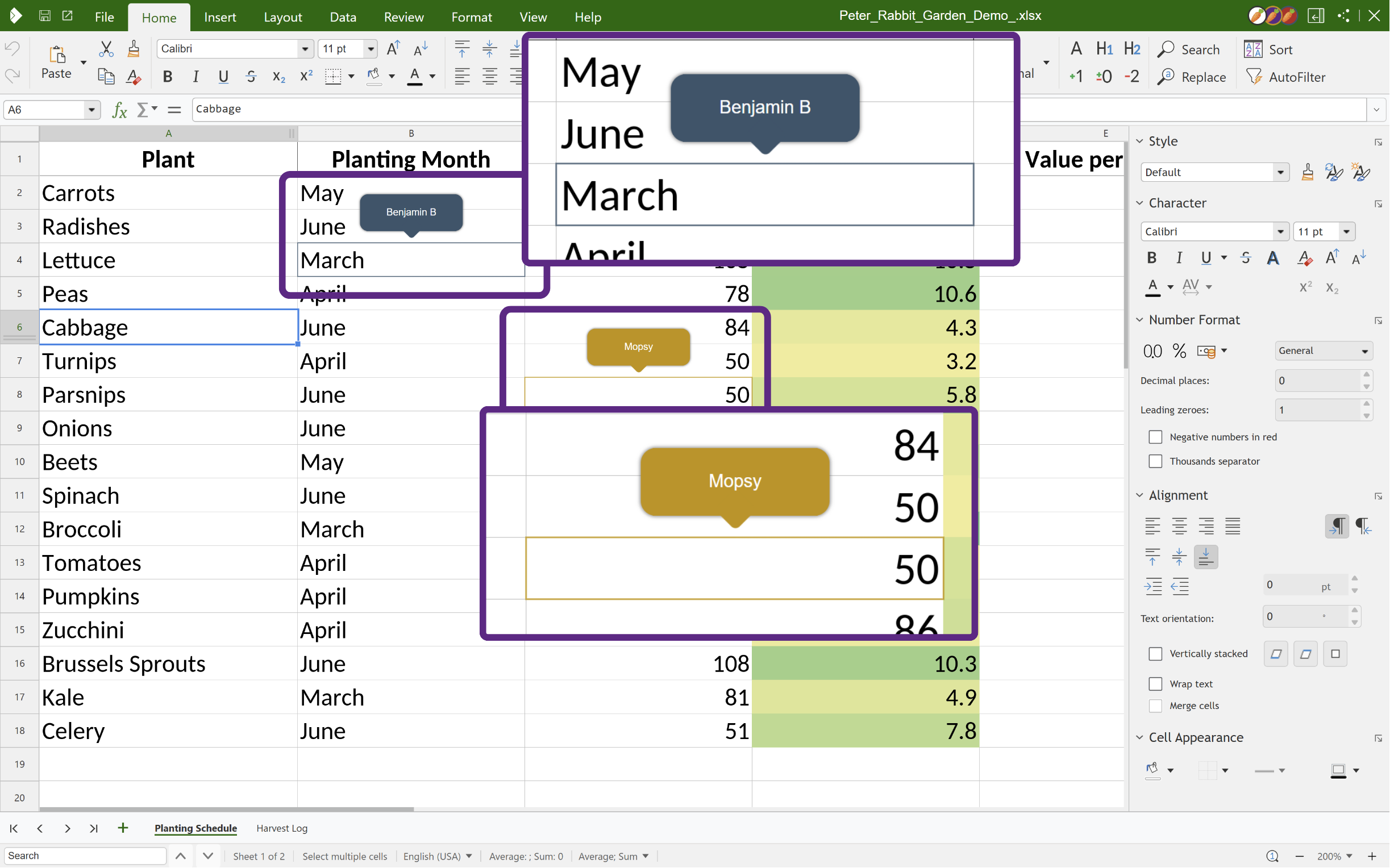
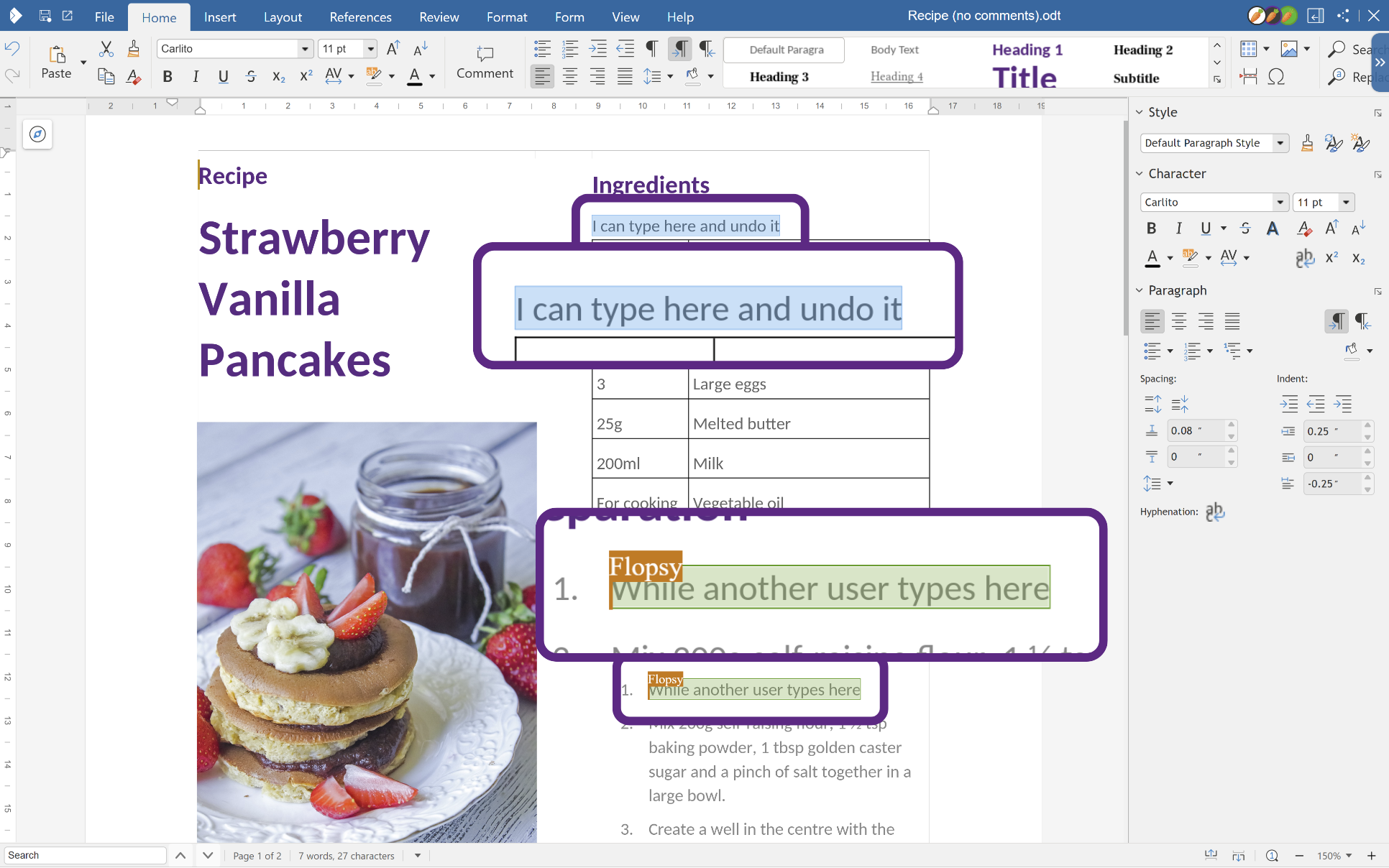
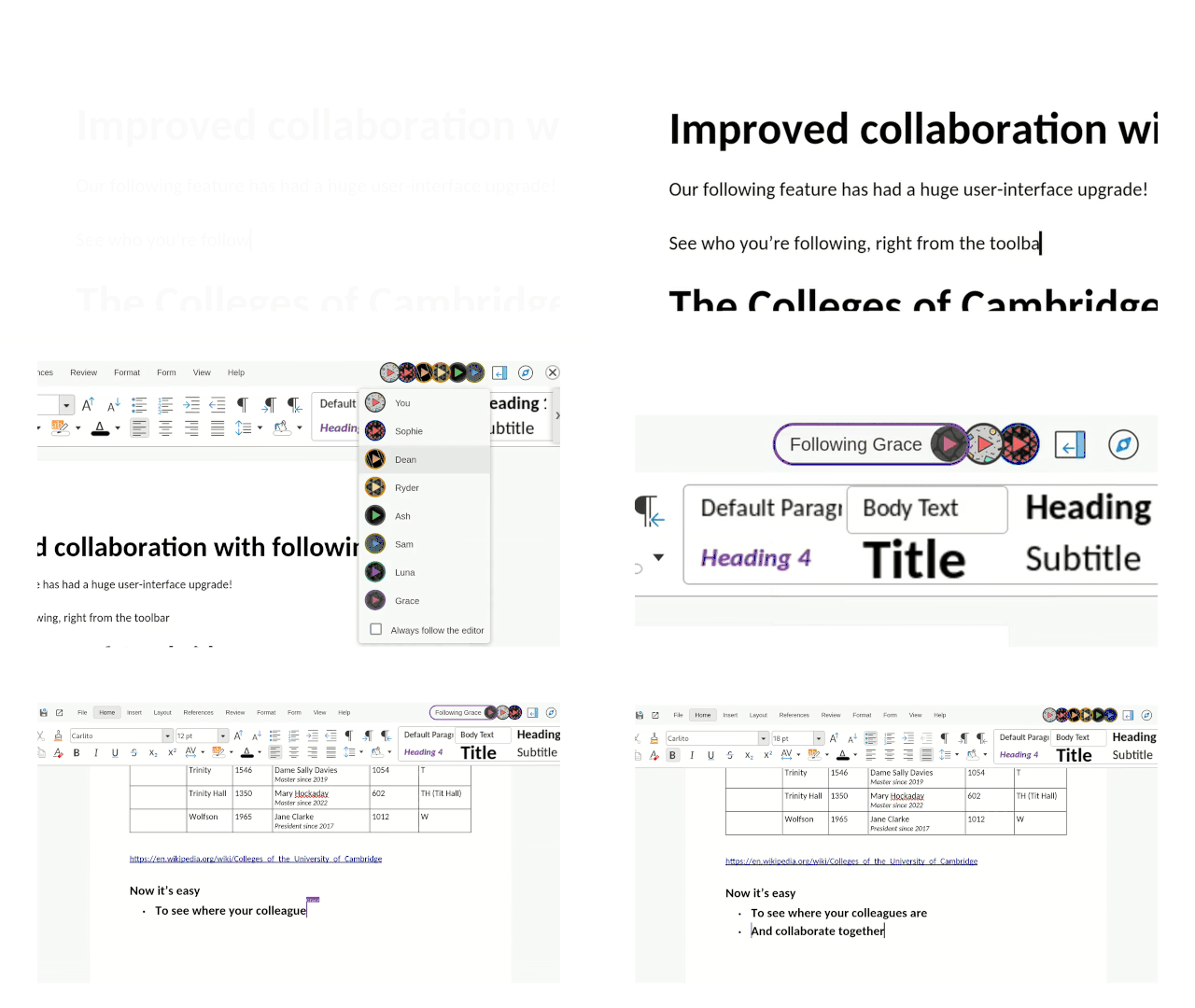
Ever wished you could see exactly what your colleague is working on in real-time? Collabora Online’s “Follow the Editor” feature makes that a reality. It lets you seamlessly track another collaborator’s actions, ensuring everyone is truly on the same page. This is a game-changer for meetings or conference calls, allowing everyone to follow the note-taker, focus on a specific section being discussed, or simply stay aligned during brainstorming sessions.
How to Start Following a User:
- Look at the top-right corner of the screen. You’ll see a list of users currently in the document.
- Simply click on the avatar of the user you want to follow.
- Your document view will instantly sync to follow their focus.
Ready to stop following? Just click on your own avatar, or the avatar of the user you’re currently following. This feature is designed to make teamwork seamless and keep everyone working together in perfect harmony.
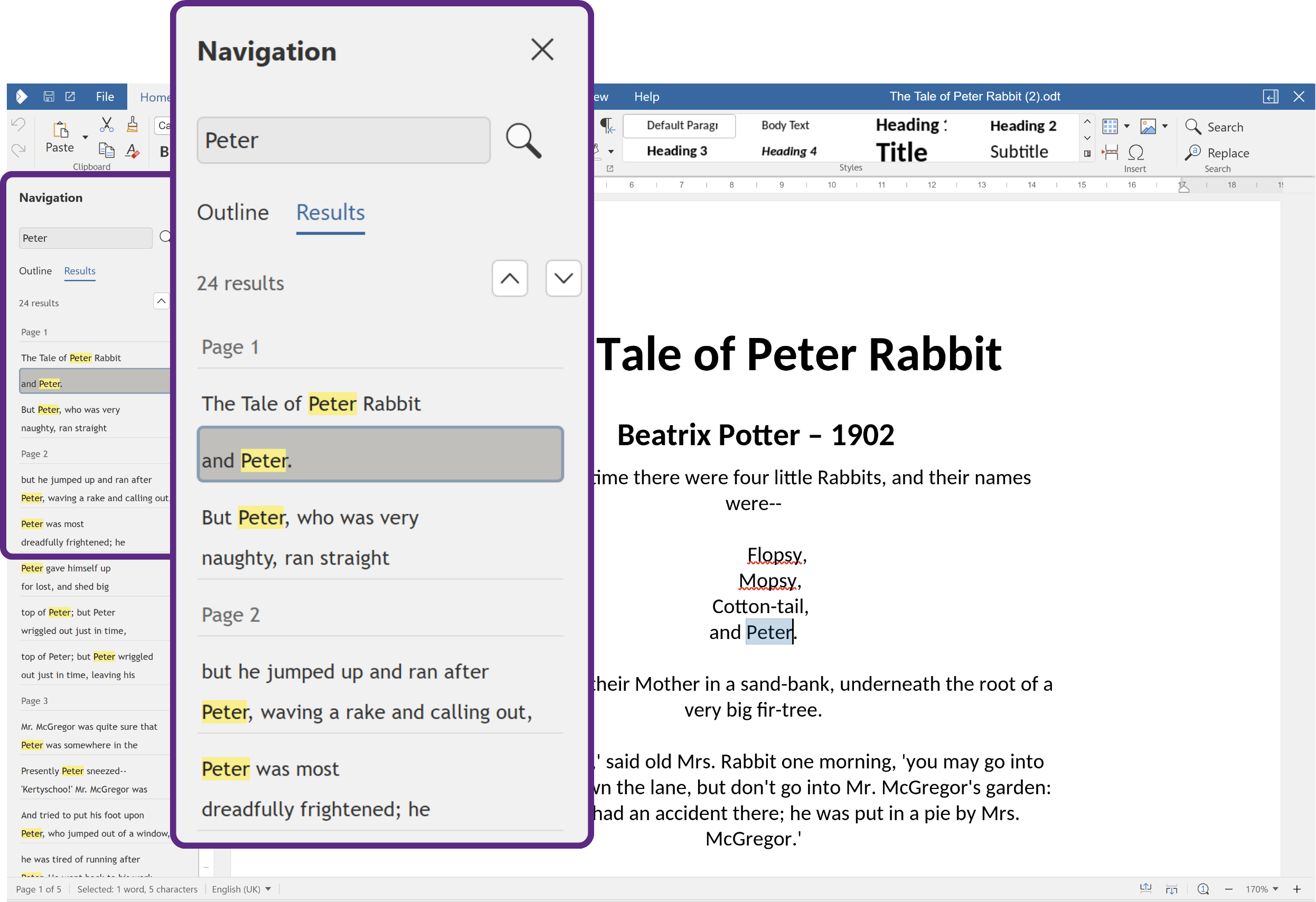
Paired with our updated Navigation Sidebar to keep Find & Replace and the document outline in view, everyone lands on the right section fast.
Sign PDFs with Secure Signatures
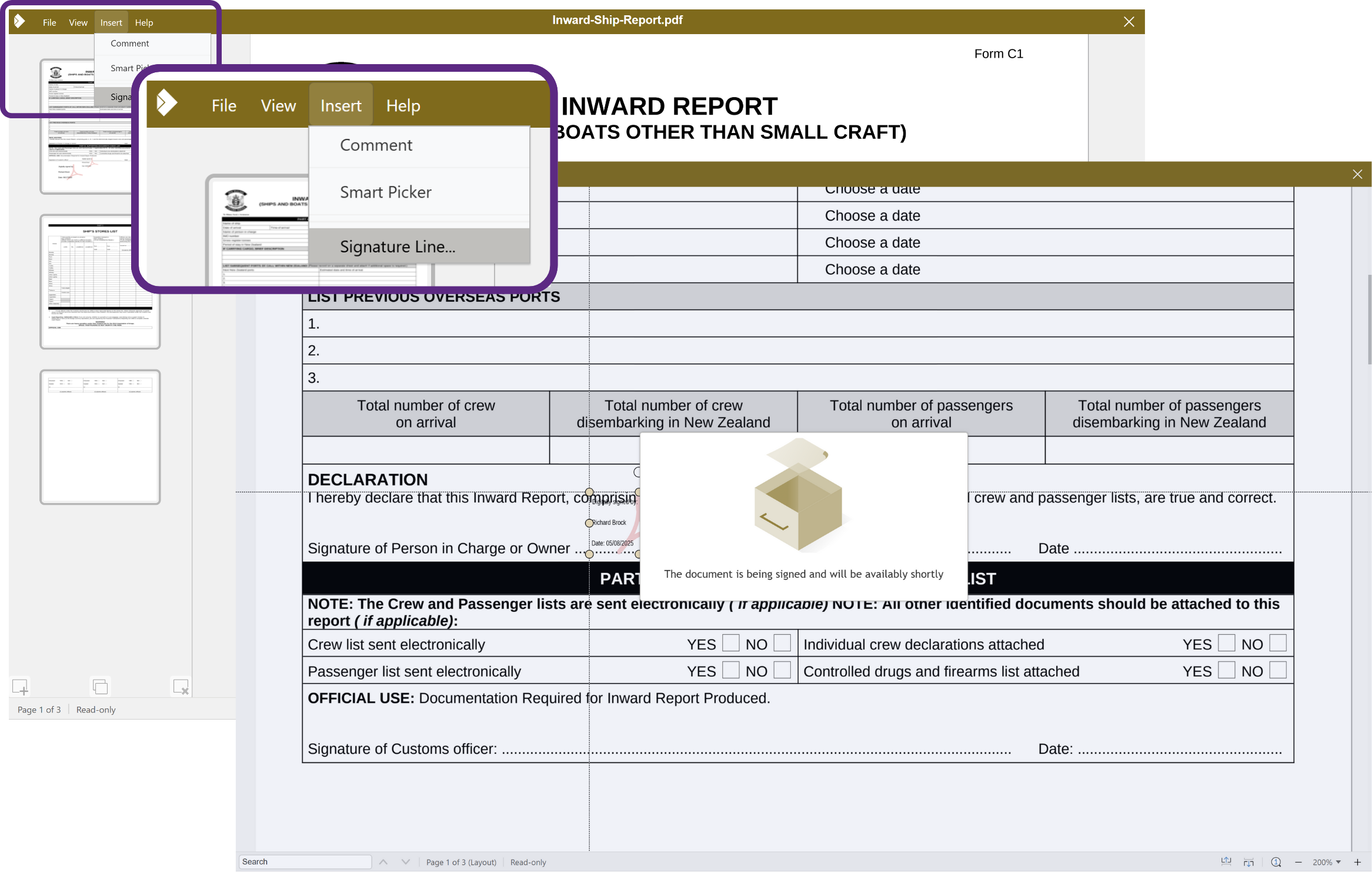
Need sign-off as part of collaboration? Use Qualified Electronic Signatures (QES) via our eID Easy integration. Stop sending your sensitive documents to third parties as part of your document signing process.
Combined with PDF 2.0 support for modern signing and archiving, these keep approval steps inside your document workflow – no external detours.
Tracking Changes in Collabora Online
Working on a text document with others? Keeping track of everyone’s edits can be tricky. That’s where Collabora Online’s Track Changes feature comes in handy. It makes collaborating a breeze by letting you easily record, review, and manage edits from multiple users. Want to see it in action? Check out the video here:
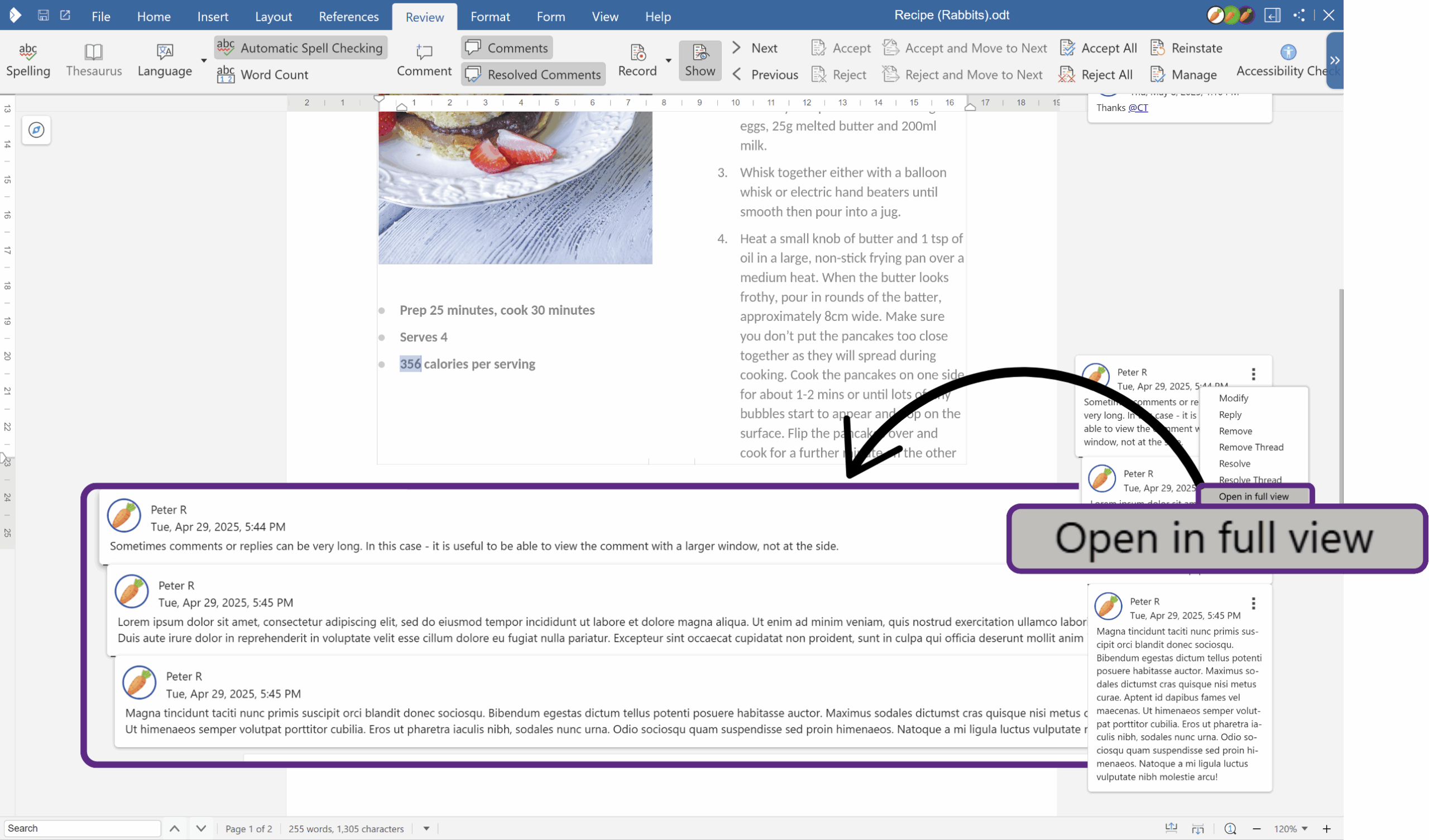
To begin tracking changes in your document, Navigate to the ‘Review‘ tab and click ‘Record‘. Once tracking is enabled, every single edit—from inserting a sentence to tweaking the formatting or even just adding a comma—is logged. Deleted text gets a strikeout, while additions are underlined. To make it clear who made which changes, each user gets their own colour, plus every change includes a timestamp and the author’s name, so you know exactly what was changed, when, and by whom.
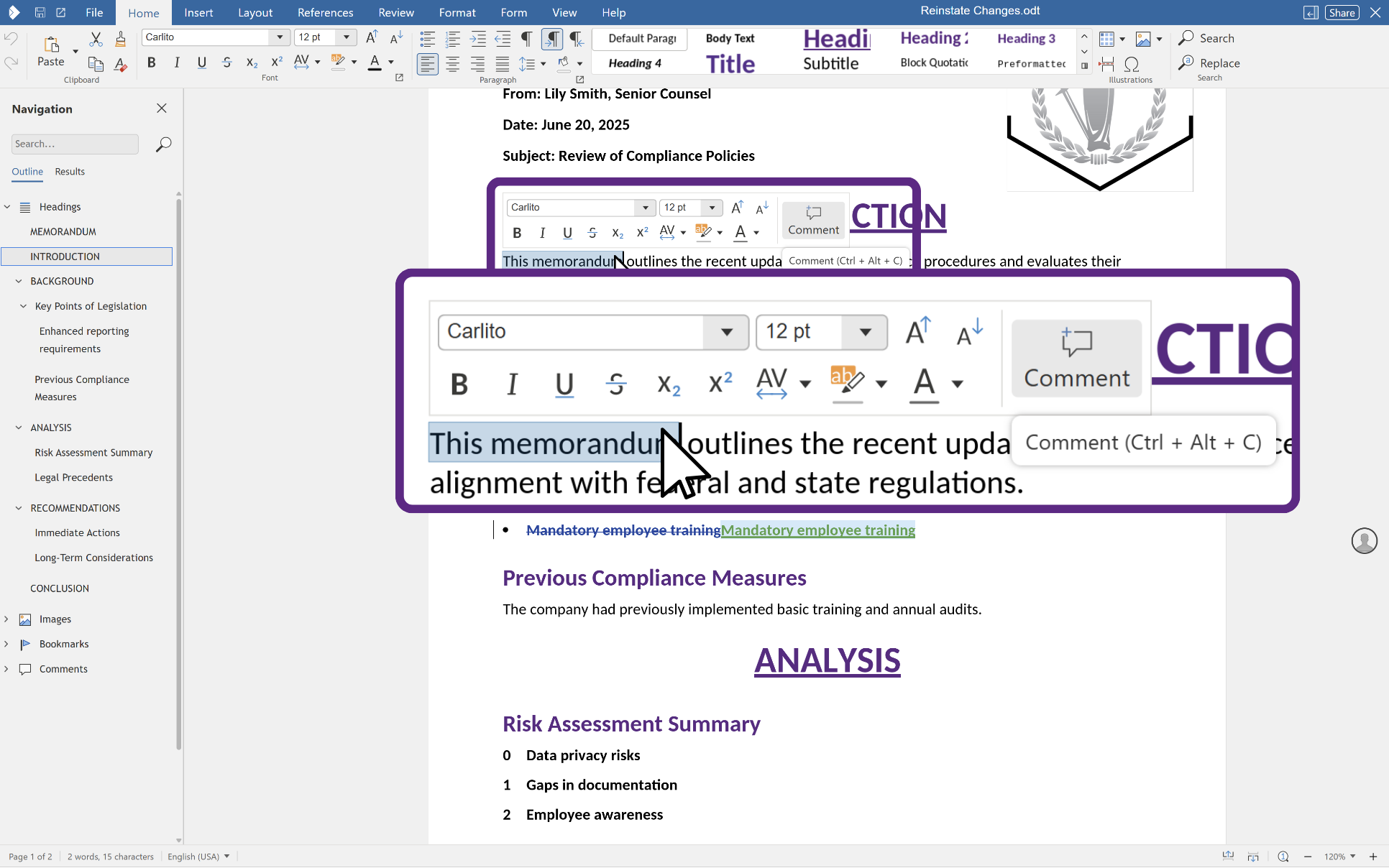
Additionally – the new ‘Reinstate’ deletion feature allows users to see when a suggested deletion has been rejected with the original text reinstated, rather than simply rejecting the change with no record of the suggested deletion. This feature is especially useful in the legal industry.
Reviewing and Managing Edits
For controlled collaboration, enable Per-User Change Tracking to log edits from specific people while others work normally. And for review-only workflows, use UserCanOnlyComment to switch a document into comment-only mode – perfect for approvals without accidental edits.
Now that you’re tracking changes, let’s talk about how to review and manage them. You have two main options:
1. Right-Click and Decide: Right-click on any tracked change, and you’ll see the options to ‘Accept Change‘ or ‘Reject Change‘.
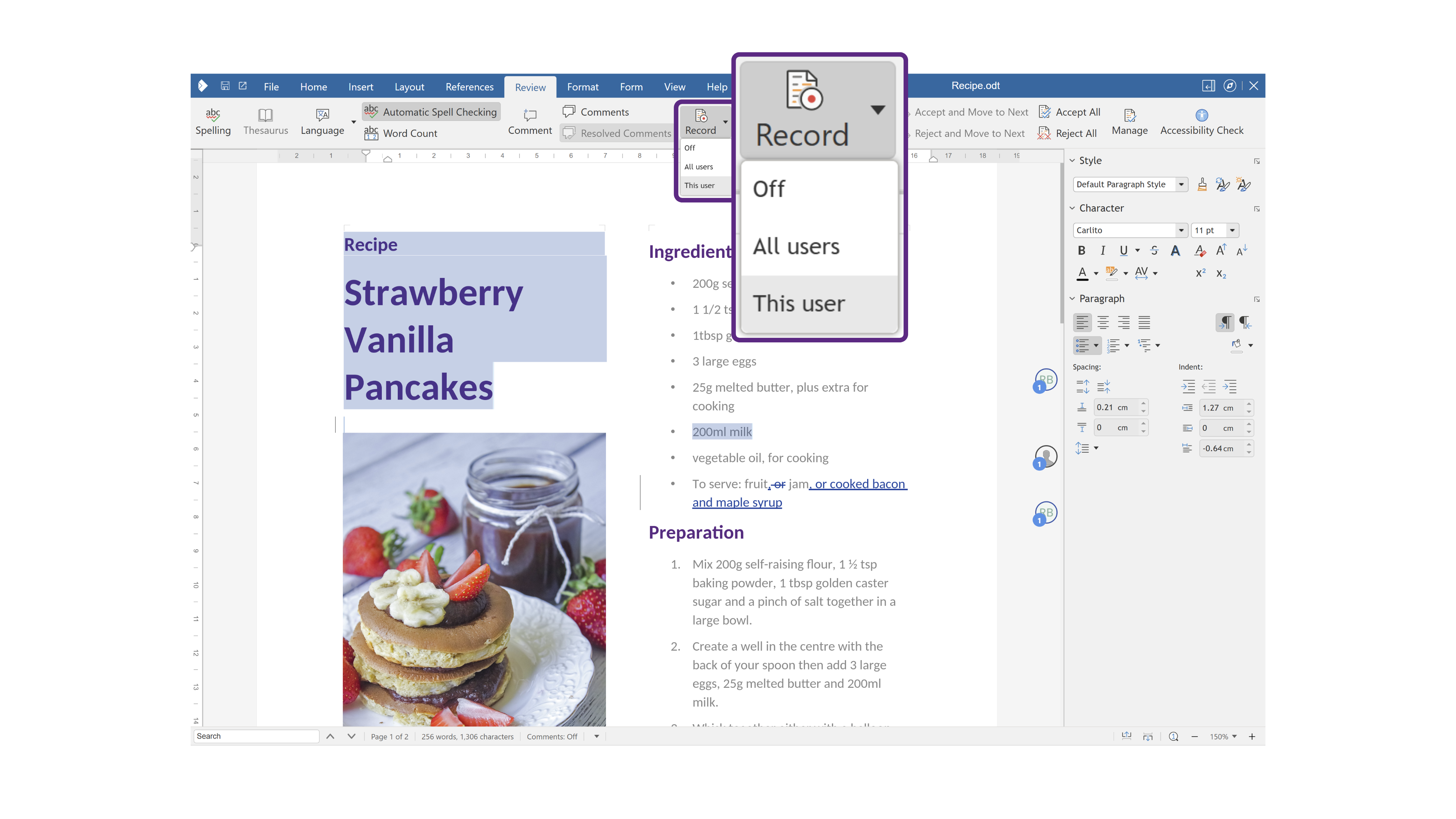
2. Streamlined Workflow with New Buttons: Collabora Online now offers even faster change management with two handy buttons: ‘Accept and Move to Next‘ and ‘Reject and Move to Next‘. Just click on the first change, then use these buttons to quickly move through the document, accepting or rejecting edits as you go. This makes reviewing revisions much more efficient.
This streamlined approach lets you zip through revisions without a lot of extra clicks, significantly boosting your productivity.
Want to learn more about maximising the Track Changes feature? We’ve got you covered! Check out our detailed blog post on How to Track and Manage Changes in Collabora Online.
In-line Feedback: Adding Comments
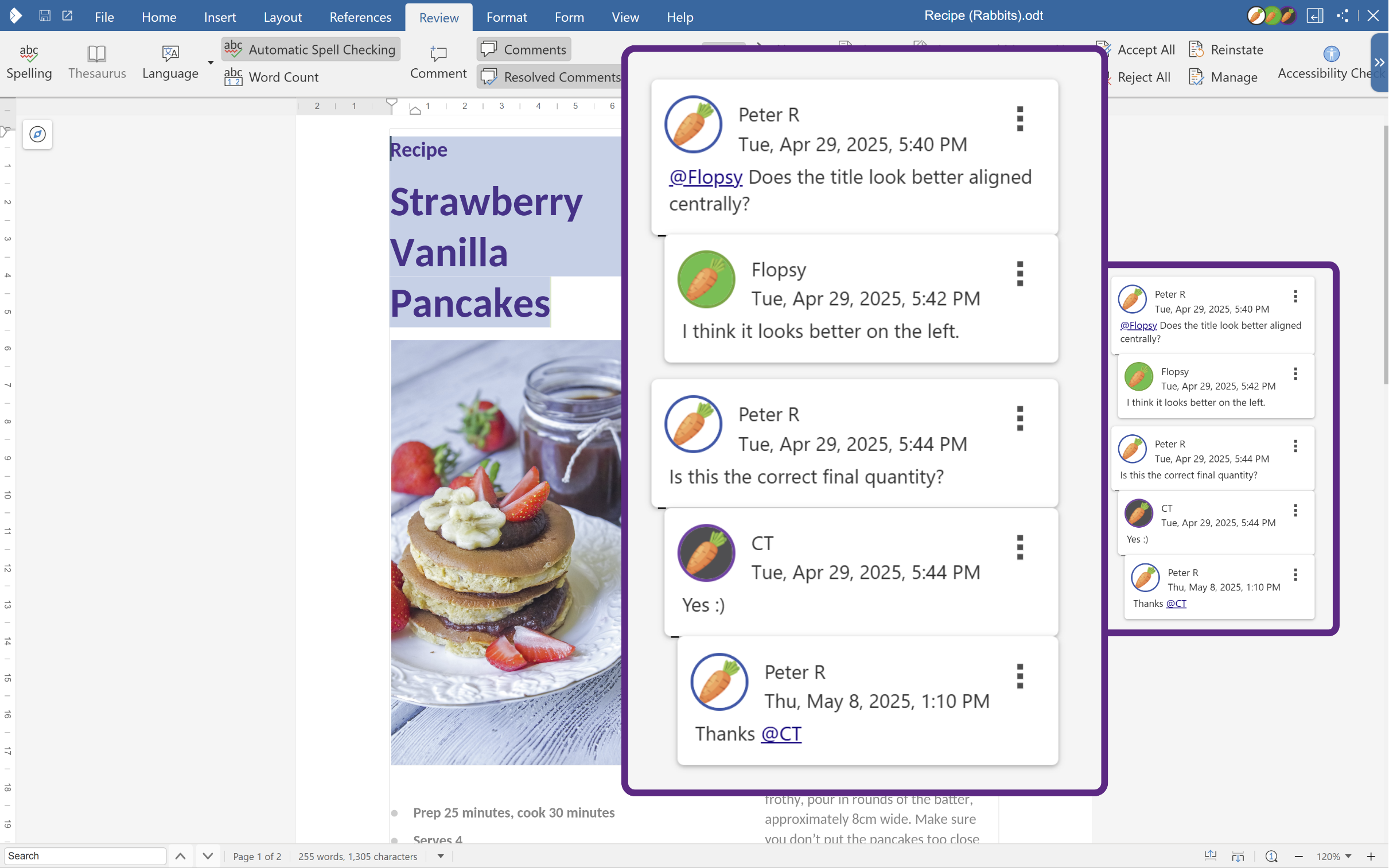
Another key part of document collaboration is feedback. Collabora Online and Office make it easy for users to share their thoughts by adding comments to specific parts of a document, reply to existing comments and creating helpful comment threads.
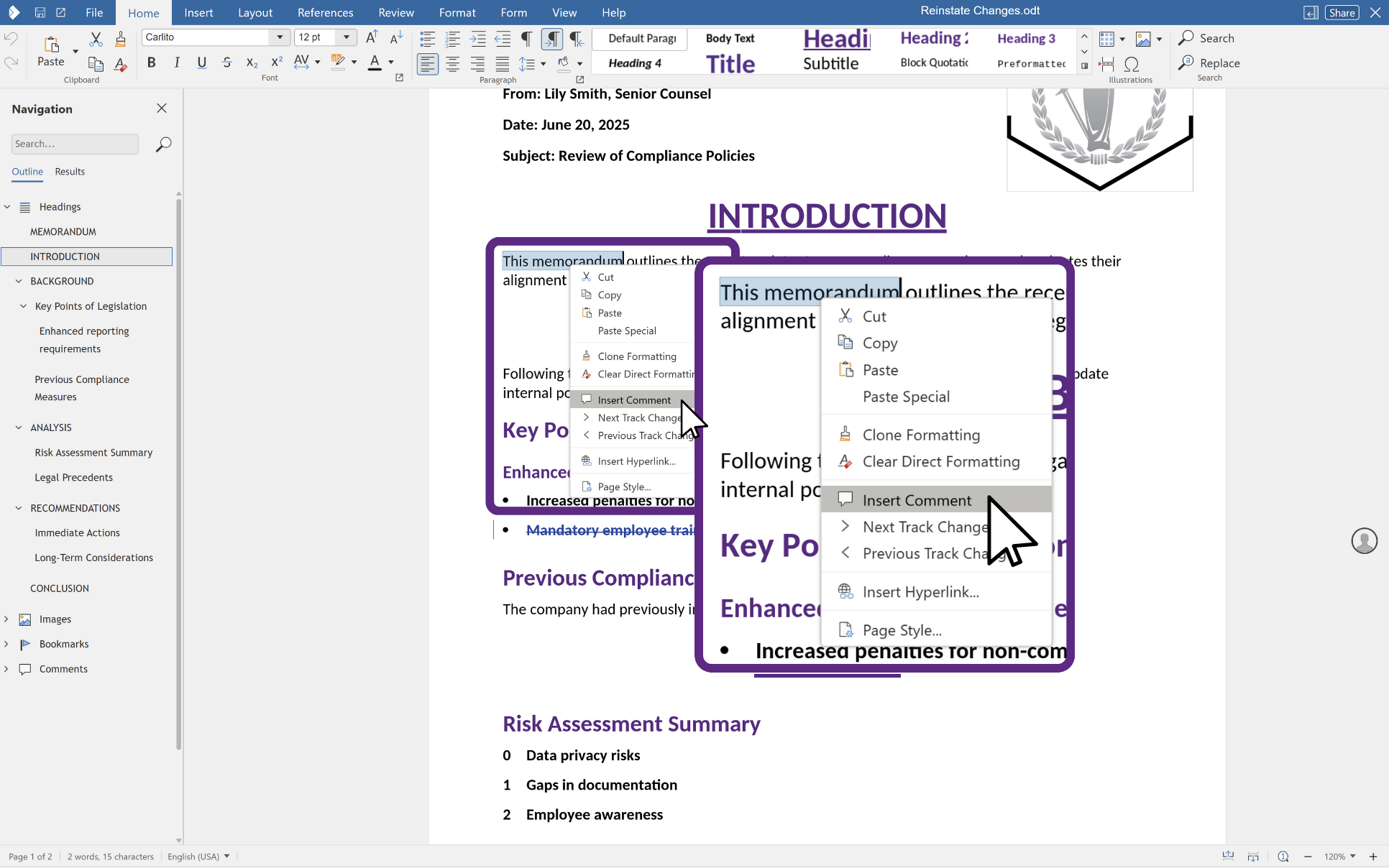
1. Right-click where you want to leave your feedback and select ‘Insert Comment’.
2. Use the new shortcut Ctrl+Enter to post your comment (or click Save)
3. Your comment will appear alongside the text, allowing other collaborators to reply or mark the comment as resolved.
Mentioning Collaborators in Comments
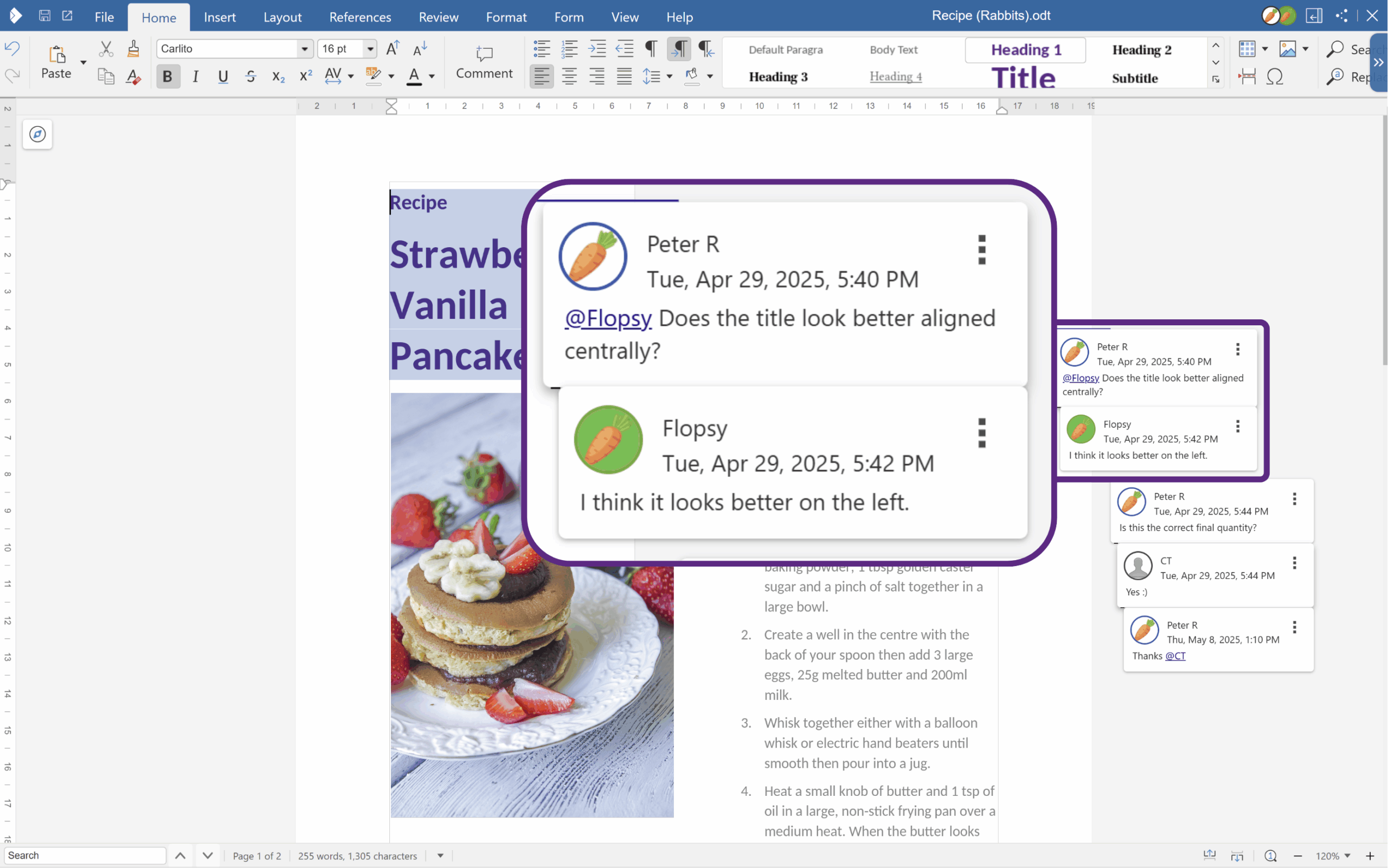
One of our recent features for keeping everyone in the loop is the ability to mention users directly within comments. This is a great way to streamline communication and avoid any confusion as to who is responsible for what. Here’s how it works:
1. While writing your comment, type ‘@’ followed by the collaborator’s name. Collabora Online should suggest names as you type (if enabled in your integration), making it quick and easy to find the right person.
2. Once you post the comment, the mentioned user will receive a notification (if enabled in your integration). This makes it super simple to direct questions, assign tasks, or give specific feedback to the person who needs it. No more sifting through emails or wondering if someone saw your comment!
Want to dig deeper into comment management? Check out our in-depth blog about the latest blog post on the latest features for effectively managing comments.
Sharing Documents Securely in Collabora Online
Collabora Online offers several ways to share documents securely, though the exact options might vary depending on your specific integration. Here’s a rundown of the sharing features you’ll typically find, using Nextcloud as an example:
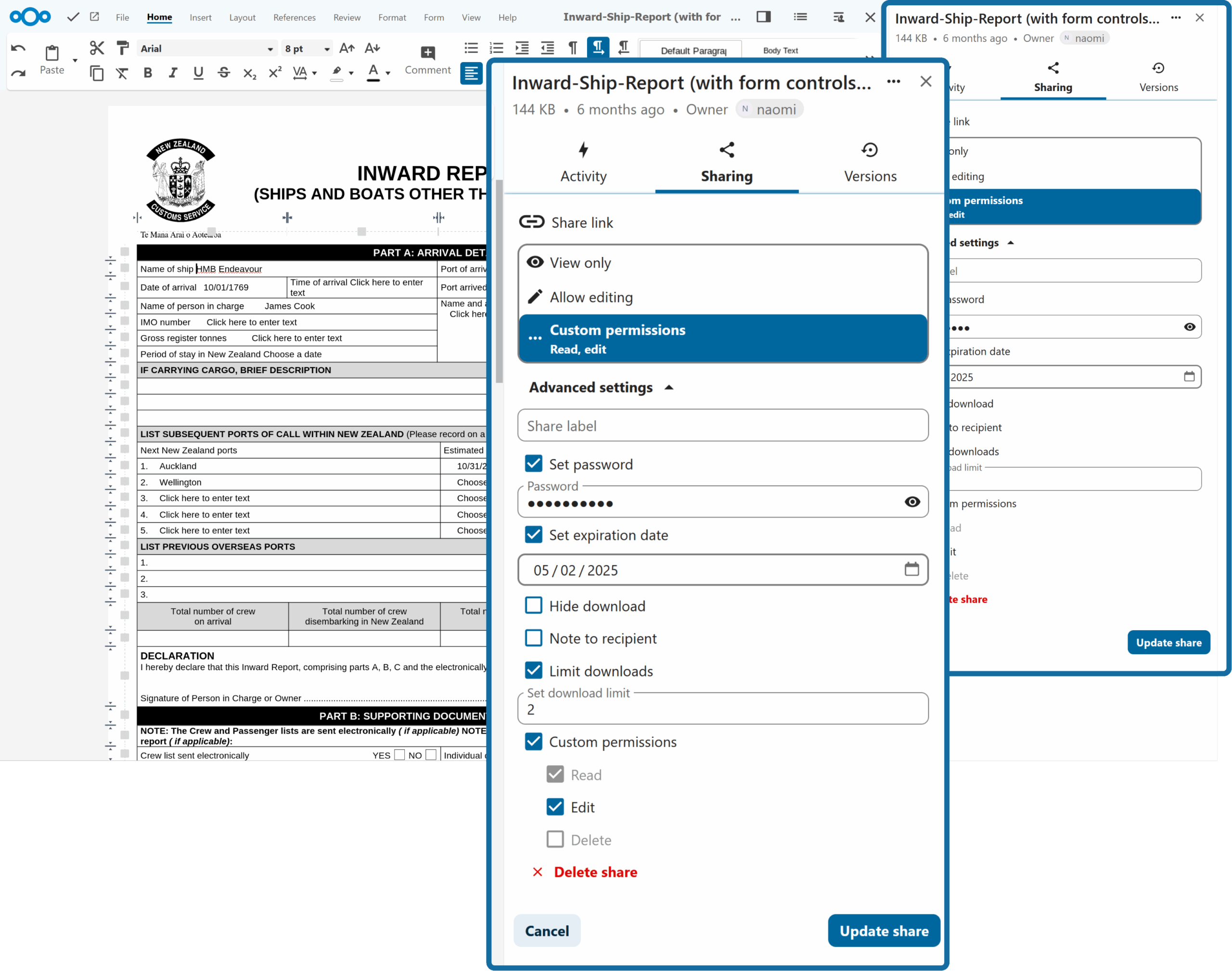
Collabora Online is heavily integrated into Nextcloud Office.
Password Protection: Your First Line of Defence
Before sharing, ensure that password protection is enabled for added protection. You can find this option in the share settings – it’s a simple but effective way to control access.
Share Link Options: Choosing the Right Level of Access
Once password protection is set, you can fine-tune permissions using these share link options:
- ‘View Only‘ – Perfect for when you want to share information without allowing edits. Recipients can see the document but can’t make changes.
- ‘Edit‘ – Allows collaborators make changes to the document alongside you.
- ‘File Drop‘ – Ideal for collecting files from others. They can upload files but not edit the document.
Further Customise Permissions
Want even finer control? Further customise permissions by enabling or disabling specific actions. Under the permissions section, you can control:
- ‘Read‘ – Allows viewing of the document.
- ‘Create‘ – Permit collaborators to create new files.
- ‘Edit‘ – Enables collaborators to make changes.
- ‘Delete‘ – Allows users to delete the document.
Set Expiration Dates
For added security and control, consider setting an expiration date for the shared link. This ensures access is automatically revoked after a specified period.
Add Context with a Custom Message
When sharing, include a custom message to provide context, instructions, or any other relevant information for your collaborators. It’s a nice touch that helps everyone stay on the same page.
Finalise and Save
Once you’ve configured all sharing settings, click ‘Update Share’ to save your changes and finalise the sharing process.
Try it yourself!
Looking for more Collabora Online tips and tricks? We’ve got you covered! Check out our video tutorials for a closer look at everything Collabora Online can do. Or, if you’re ready to jump in, try it out for yourself with our free demo.